High-resolution media appears more professional and credible, whether you’re recording footage for a marketing video or just flipping on your webcam for a Zoom call. Most default MacBook webcams are fairly low-grade, resulting in blurry and flat images.
But if you have an iPhone, the solution to better footage is right in your pocket thanks to Continuity Camera. Continuity Camera is an Apple-exclusive feature that wirelessly streams your iPhone’s rear camera to any supported video app running on your Mac.
In this article, you’ll learn how to use Continuity Camera — we’ll cover the basics and more advanced features, plus how to publish and share what you create.
What is Continuity Camera?
Continuity Camera is a feature from Apple that allows you to record professional-looking videos, as modern iPhones are capable of high resolution, often enough to shoot 4K videos. It can improve your video quality for live streams and meetings, and includes features like Center Stage to automatically keep you centered in the frame.
There is also a Desk View feature available, which uses the ultrawide camera to capture two angles at once, such as your face and a desk surface for hands-on demonstrations.
How to set up Continuity Camera: 6 steps
Here’s how to set up and use the iPhone Continuity Camera for quick but professional recordings.
1. Check device compatibility
Make sure your iPhone and Mac meet the following requirements:
- iPhone XR (2018) or later, running iOS 16+
- macOS Ventura 13 or later
2. Configure your settings
Open your devices’ settings menus and configure the following:
- On your phone, enable the Continuity Camera feature under “Settings” → “General” → “AirPlay & Handoff” → “Continuity Camera.”
- Disable AirPlay and Sidecar to prevent them from interfering with the connection.
- Turn on Wi-Fi and Bluetooth for both devices, or plug the iPhone into the Mac and accept the prompt that appears.
3. Sign in to your account
Sign in to the same Apple ID on both devices. You’ll need to enable two-factor authentication if you haven’t already. You can do that in the “Settings” menu on iPhone or iPad, under “System Settings” on macOS, or on the Apple website under “Upgrade Account Security.”
4. Mount your iPhone
Lock your iPhone and mount it on or near your Mac in landscape orientation. Note that you can turn your phone vertically, but the video feed will still stream in landscape. You may want to use a tripod or screen mount for maximum stability and smoother videos.
5. Open a video app
On your Mac, open an app that supports the Continuity Camera feature, then start a recording or video call. Many apps allow Continuity Camera as a recording device, including:
6. Select your iPhone camera
In your video app’s settings, select your iPhone camera as the video input source. It will likely appear as either “iPhone Camera” or “Continuity Camera” in the menu. If you don’t have another webcam connected, your Mac should automatically default to the iPhone camera.
You can also select your iPhone as an audio input source, but make sure your mount isn’t blocking the microphone.
How to turn off Continuity Camera
If you don’t need to use Continuity Camera, or if it’s interfering with other parts of your setup, you can easily disable it:
- How to turn off Continuity Camera on an iPhone: Head to the “Settings” menu and navigate to “General” → “AirPlay & Handoff” → “Continuity Camera,” then toggle the option off. You can also turn off Wi-Fi and/or Bluetooth to disable the feature temporarily.
- How to turn off Continuity Camera on a Mac: To turn off Continuity Camera without your phone, use your Mac to select a different video input source.
Why you might use Continuity Camera
Your iPhone has several features you won’t find in a typical webcam. You might use it if you want to:
- Record professional-looking videos: The 48 MP main camera on modern iPhones delivers high resolution for still images, and it’s more than capable with video. You’ll typically get over 8 MP per frame when recording, which is enough to shoot 4K videos.
- Keep content automatically centered: An iPhone’s Center Stage feature tracks your movement and keeps you centered in the frame — there’s no need for a cameraperson.
- Show multiple angles: With its Desk View, Continuity Camera can use ultrawide sensors to capture two angles at once. This means you can record your face and desk simultaneously for hands-on demos and tutorials.
- Enhance lighting and background: The Studio Light and Portrait Mode features let you improve visuals without ring lights or other video equipment.
- Improve live video quality: Your iPhone’s camera is likely much better than your MacBook’s webcam, and it even outperforms many external cameras. That means crisper, more professional-looking video for Zoom meetings and live streams.
Host your Continuity Camera videos with Vimeo →
Troubleshooting Continuity Camera issues
If you have any trouble with Continuity Camera, try these fixes first:
- Update your devices and software: To use Continuity Camera, you need at least an iPhone XR running iOS 16+ and a Mac running macOS Ventura 13+.
- Make sure both devices are signed in using the same Apple ID: For security purposes, both your iPhone and Mac must be signed in with the same Apple ID.
- Place the devices close together: While they don’t have to connect to the same Wi-Fi network, your phone and computer should be within 30 ft of each other.
- Check your device settings: See if both devices have Wi-Fi and Bluetooth enabled, then make sure you’ve toggled on Continuity Camera in your Handoff settings and disabled both AirPlay and Sidecar.
- Restart the devices: If your Mac isn’t detecting your iPhone camera, restart both devices to begin with a clean slate.
- Try a wired connection: If all else fails, or you just want a simpler and more stable setup, connect your Mac and iPhone directly. Don’t forget to accept the prompt that appears on your iPhone when you plug in another Apple device.
Advanced ways to use Continuity Camera
These more advanced options will help you get the most out of Continuity Camera:
- Mount your iPhone on a tripod: You can get more stable, high-quality video by using a sturdy tripod, since the lighting and tracking features work best with a static background.
- Use Presenter Overlay: Zoom, Keynote, and FaceTime all support a Presenter Overlay feature that automatically places your video in a frame or bubble while you record your screen. That gives you one less thing to worry about later when you’re editing recordings for Zoom presentations or training videos.
- Record multi-angle demonstrations: The Desk View feature uses the iPhone’s ultrawide camera to capture two video feeds. You can fit a lot into the 120-degree field of view, like your desk surface and face or two angles of the same workspace.
- Insert images or scan documents: You can insert images directly into apps or upload documents on your Mac by photographing them with your iPhone and sending them through Continuity Camera.
- Stream to an Apple TV: Continuity Camera works with Apple TVs running tvOS 17 or higher.
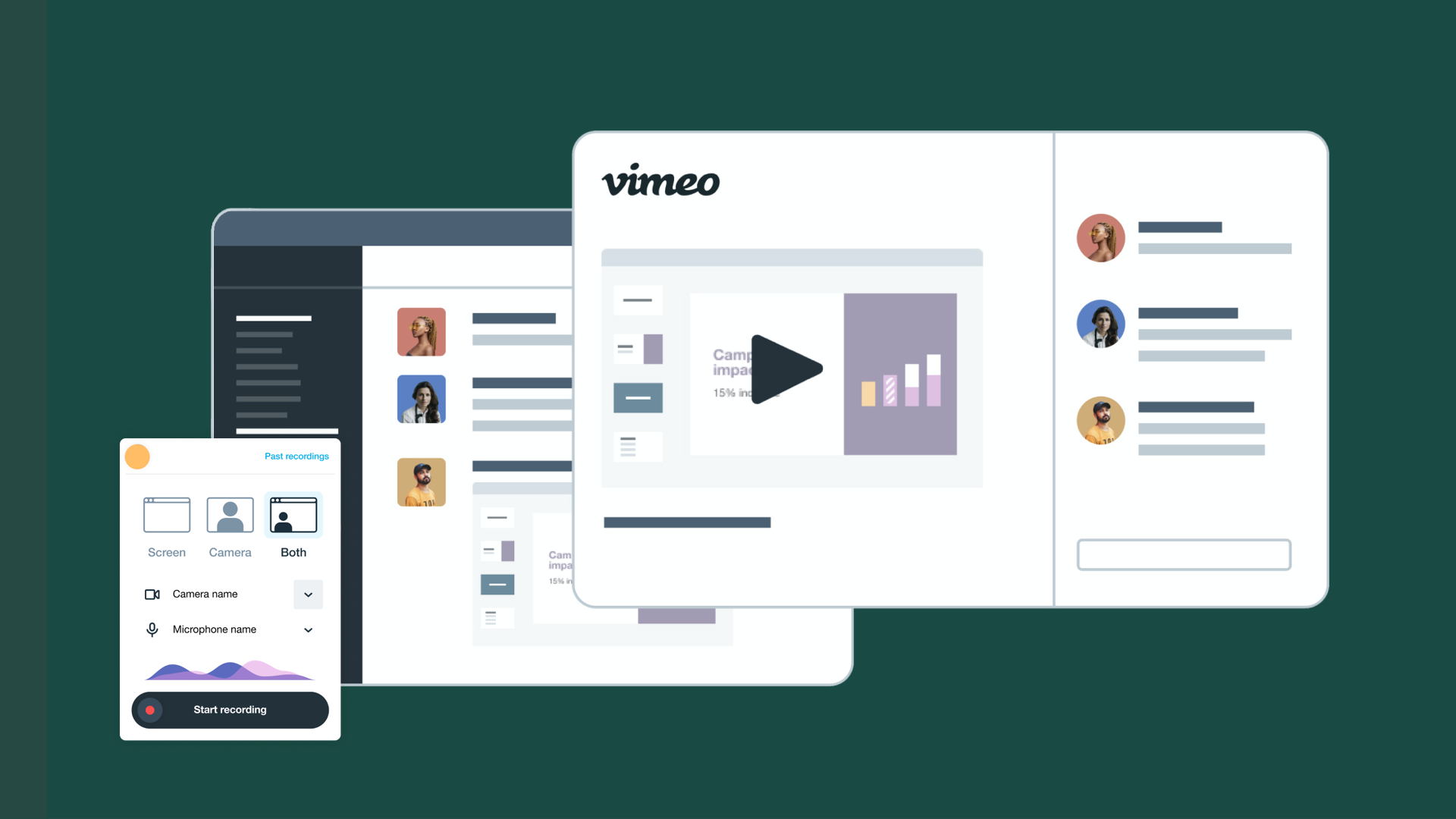
- Export your recordings to video management software: Continuity Camera gives you a great start by recording high-quality footage, but professional videos often require advanced editing and effects. With a platform like Vimeo, you can trim and polish raw video, add captions, include branding elements, and collaborate using Vimeo Review.
Edit and share your Continuity Camera videos with Vimeo
Apple’s Continuity Camera makes it easier to capture high-quality footage, and it offers several features that can improve the way you shoot and edit videos. Options like Desk View, Presenter Overlay, and Studio Light let you ditch the external webcam while streamlining several steps of the editing process, such as creating overlays and arranging multiple video sources.
For an even more seamless workflow, you can add Vimeo’s browser-based video recording and editing suite to your toolset. Our platform is fully compatible with Continuity Camera, and anything you record will be added right to your Vimeo Library. Then you can trim the footage with text-based editing, insert animations and graphics, publish across multiple channels, and track engagement.